

Understanding Bluetooth limitations on the PS5
Why the PS5 Doesn’t Support Bluetooth Audio Natively
Many users are surprised to find that the PlayStation 5 doesn’t allow you to connect Bluetooth headphones directly for audio output. While you can pair a wireless headset for chat, the PS5’s Bluetooth support is limited when it comes to transmitting game audio. This is mainly due to Sony’s focus on minimizing audio lag and maintaining a high-quality gaming experience. Bluetooth audio, especially with noise canceling headphones, can introduce latency and compatibility issues that impact gameplay.
How Bluetooth Limitations Affect Your Headphones
When you try to connect Bluetooth headphones or a wireless headset to your PS5, you might notice that the console doesn’t recognize them as audio devices. This is because the PS5’s Bluetooth pairing mode is designed for specific accessories, like controllers, and not for general Bluetooth audio devices. Even if your headphones work perfectly with your phone or PC, they won’t connect directly to the PS5 for game sound. This limitation can be frustrating, especially if you’ve invested in high-quality noise canceling headphones for immersive audio.
- Bluetooth headphones and wireless headphones aren’t supported for direct audio output on the PS5
- Pairing mode on the console is restricted to certain devices
- Audio output via Bluetooth can introduce lag, which affects gaming performance
If you want to dig deeper into the technical reasons behind these limitations, check out this post on understanding advanced wireless technology in noise canceling headphones. It explains why some wireless tech works differently across devices, including the PlayStation ecosystem.
What This Means for Your Audio Experience
Because of these Bluetooth restrictions, you’ll need to explore alternative ways to connect your Bluetooth headphones or wireless headset to the PS5. Whether you’re considering a Bluetooth adapter, a USB adapter, or switching headset modes, the next sections will guide you through practical solutions to fill the gap and optimize your audio settings for the best gaming experience.
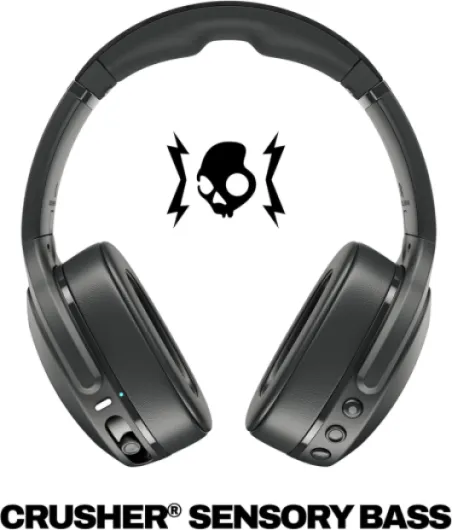
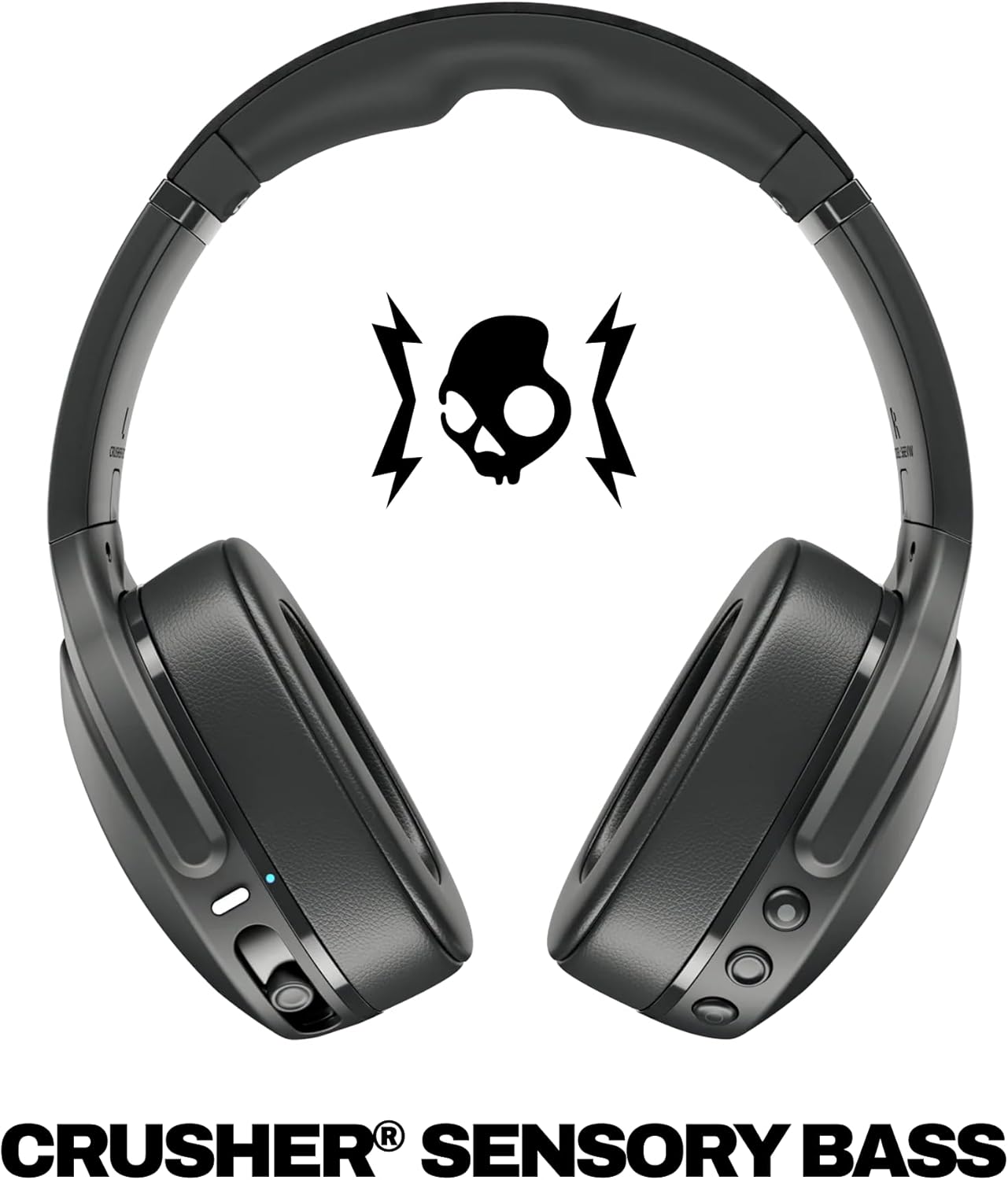
- + Multi-Sensory Bass for enhanced sound experience
- + Noise Isolating over-ear design
- + Up to 40 Hours Battery life for long usage
- + Compatible with iPhone and Android
- + Built-in microphone for calls

Common challenges with noise canceling headphones
Why Noise Canceling Headphones Face Hurdles on PlayStation
Many gamers expect their wireless headphones to connect seamlessly to the PlayStation 5, but the reality is a bit more complicated. The PS5 doesn’t natively support most Bluetooth audio devices, including many popular noise canceling headphones. This limitation can be frustrating, especially if you’ve invested in a high-quality wireless headset and want to enjoy immersive audio during your gaming sessions.
- Bluetooth pairing issues: The PS5 restricts Bluetooth audio connections to minimize latency and interference, which means your Bluetooth headphones or headset often won’t pair directly with the console.
- Audio output compatibility: Even if you manage to connect Bluetooth headphones using a workaround, you might notice reduced audio quality or a lack of support for features like microphone input or surround sound.
- Adapter requirements: Without native support, many users turn to USB adapters or Bluetooth dongles to bridge the gap. However, not all adapters work flawlessly with every wireless headphone model, and some may require extra steps to switch headset modes or adjust audio settings.
- Firmware and tech updates: Over the years, PlayStation firmware updates have not added broad Bluetooth audio support, so the challenges persist for most wireless headphones.
For those looking to connect Bluetooth headphones to a PS5, it’s important to understand these technical hurdles before diving into pairing mode or purchasing a new adapter. For a deeper dive into the specifics of connecting Bluetooth headphones to your PS5, check out this detailed guide on connecting Bluetooth headphones to your PS5.
In the next section, we’ll explore how Bluetooth adapters can help you work around these limitations and get your wireless headphones working with your PlayStation.
Using Bluetooth adapters as a workaround
Why a Bluetooth adapter makes a difference
Many users are surprised to find that the PlayStation 5 doesn’t support connecting Bluetooth headphones directly. While the console has Bluetooth for controllers, it restricts Bluetooth audio devices due to latency and compatibility issues. This means your wireless headphones or headset won’t pair with the PS5 out of the box, which can be frustrating if you want a seamless wireless audio experience.
How Bluetooth adapters bridge the gap
A Bluetooth adapter acts as a bridge between your PS5 and your wireless headphones. By plugging a USB Bluetooth adapter into one of the PS5’s USB ports, you create a new audio output option. This allows you to connect Bluetooth headphones or a wireless headset that otherwise wouldn’t work with the console. Most adapters support a wide range of Bluetooth audio devices, including noise canceling headphones, and can handle pairing mode and audio output switching efficiently.
- Plug and play: Most USB adapters are easy to use. Plug the USB adapter into the PS5, switch your headphones to pairing mode, and follow the adapter’s instructions to connect.
- Compatibility: Not all adapters support every Bluetooth headphone model, so check compatibility before buying. Some adapters are optimized for gaming headsets, while others work with general Bluetooth headphones.
- Audio quality: While adapters can fill the gap, some may introduce slight audio lag or reduced sound quality compared to direct connections. However, many users find the trade-off acceptable for the convenience of wireless audio.
Choosing the right adapter for your setup
When selecting a Bluetooth adapter, consider the type of headphones you have and the audio features you need. Look for adapters that support the latest Bluetooth standards and have good reviews from other PlayStation users. Some adapters even support microphone input, which is useful if you use your headset for in-game chat. For a deeper dive into audio tech and how adapters can enhance your setup, check out this dynamic vocal microphone review for insights on optimizing audio devices.
Remember, using a Bluetooth adapter is a practical workaround for connecting your favorite wireless headphones to the PS5. It’s not perfect, but it’s the most reliable way to enjoy wireless audio on your console until native support improves in future years.
Pairing your headphones step by step
Getting Your Wireless Headphones Ready
Before you start, make sure your Bluetooth headphones are fully charged and not connected to any other device. Most wireless headphones need to be in pairing mode to connect with a new device like the PlayStation 5. Check your headset’s manual for the exact steps, but usually, you hold the power or Bluetooth button for a few seconds until a light flashes or you hear a sound.
Connecting with a Bluetooth Adapter
Since the PS5 doesn’t support Bluetooth audio natively, you’ll need a Bluetooth adapter. Plug the USB adapter into one of the PS5’s USB ports. Some adapters may require you to switch the PS5’s audio output settings, so go to Settings > Sound > Audio Output and select the connected USB device as your audio device.
- Set your Bluetooth headphones to pairing mode.
- The adapter’s light will usually blink when searching for devices.
- Once the adapter finds your headphones, you’ll hear a confirmation sound or see a steady light.
- If your headphones don’t connect, try resetting the adapter or headphones and repeat the process.
Troubleshooting Common Pairing Issues
Not all wireless headphones work perfectly with every adapter. Some models may not support certain audio codecs, which can affect sound quality or microphone support. If you notice lag or your headset doesn’t connect, try another adapter or check if your headphones support multipoint pairing. Also, make sure no other device is trying to connect to your headphones during the process.
Switching Between Devices
If you use your Bluetooth headphones with multiple devices (like a phone or PC), you may need to manually disconnect from one device before connecting to your PS5. Some wireless headsets support easy switching, but others require you to repeat the pairing steps each time you switch. This is a common challenge with Bluetooth tech, especially with gaming consoles.
Alternative connection methods for better audio
Exploring Wired and Wireless Alternatives
If you find that your Bluetooth headphones don’t connect directly to your PlayStation, you’re not alone. Many wireless headphones, especially those with advanced noise canceling tech, aren’t natively supported by the PS5’s Bluetooth system. But there are several alternative ways to get your audio working smoothly.
- USB Adapter: Most reliable wireless connection. Plug a USB Bluetooth adapter into your PS5. This adapter acts as a bridge, allowing your wireless headset to pair and work as if it were natively supported. Make sure the adapter supports both Bluetooth audio and headset connect features for the best experience.
- Wired Connection: If your headphones come with a detachable cable, you can connect them directly to the DualSense controller’s 3.5mm jack. This method bypasses Bluetooth limitations and ensures stable audio output, though you lose some wireless convenience.
- Audio Devices via TV: Some TVs support Bluetooth audio output. You can pair your Bluetooth headphones with your TV instead of the PlayStation. This works well for audio, but you may notice a slight delay, which can be an issue in fast-paced games.
- Dedicated Wireless Headsets: PlayStation-branded wireless headsets or those with a specific USB dongle are designed to work seamlessly. These headsets switch modes automatically and are optimized for the console’s audio settings.
Quick Comparison Table
| Connection Method | Wireless | Audio Quality | Setup Complexity | Supports Mic |
|---|---|---|---|---|
| USB Bluetooth Adapter | Yes | High (depends on adapter) | Medium | Usually |
| Wired (3.5mm jack) | No | Very High | Easy | Yes |
| Bluetooth via TV | Yes | Medium | Medium | No |
| Official Wireless Headset | Yes | Very High | Easy | Yes |
Each method has its pros and cons. If you want the most seamless experience, a USB adapter or an official PlayStation wireless headset is usually the way to go. For those who prioritize audio fidelity and don’t mind a cable, the wired option is still a strong choice. Remember to check your audio settings on the PS5 after connecting, so you get the best sound possible from your headphones.
Optimizing your audio experience on the PS5
Fine-tuning your wireless audio for gaming
Getting the most out of your wireless headphones on the PlayStation 5 means more than just connecting them. Once your bluetooth headphones are paired—whether through a bluetooth adapter, USB dongle, or other workaround—there are a few steps you can take to optimize your audio experience.- Adjust audio output settings: Head to the PS5 audio settings menu. Here, you can select your preferred audio devices, switch headset output between "Chat" and "All Audio," and adjust the volume. If your headphones support surround sound or 3D audio, make sure to enable these features for a more immersive experience.
- Check for firmware updates: Some wireless headsets and bluetooth adapters receive updates that improve compatibility or audio quality. Check the manufacturer's website or support posts for the latest updates, and install them if available.
- Experiment with pairing modes: If you notice lag or connection drops, try switching your headphones to a different bluetooth pairing mode. Some models offer a "gaming mode" or "low latency mode" that can reduce audio delay.
- Position your USB adapter: If you are using a USB bluetooth adapter, plug the USB dongle into a front port or use a short extension cable. This can help avoid interference and improve wireless performance, especially in rooms filled with other tech devices.
- Switch headset profiles: Many wireless headphones let you switch between EQ presets or audio profiles. Try different modes to find the one that best matches your gaming preferences, whether you want booming bass or clear dialogue.
Common troubleshooting tips
If your bluetooth headphones don’t work as expected or the audio quality isn’t great, consider these steps:- Double-check that your headset is fully charged and in the correct pairing mode.
- Ensure your PS5 is set to output audio to the correct device. Sometimes, the system defaults back to TV speakers or another audio output after a restart.
- If you experience audio lag, disconnect other wireless devices nearby that could interfere with your bluetooth signal.
- For headsets that support both bluetooth and wired connections, try plugging in directly with a cable for critical gaming sessions where latency matters.